Expose Local Services to the Public Internet via Cloudflare Tunnel
Use Cloudflared tunnel to map any local HTTP service on your machine to your own domain, along with a VBS background script for silent start/stop and a universal config file.
Recently I suddenly wanted to be able to view the files on my computer from my phone. After searching around, everything said you need a public IP address, which is definitely not acceptable for a free-rider like me. In the end I successfully found a tool provided by the cyber-Buddha Cloudflare.
Thanks to xiaoyuboi/cloudflare-tunnel-skill↗ for providing the approach and direction — you can directly import this skill into Claude to help you complete it. The following is just a write-up of my own notes.
I. Overall Architecture
Traffic Flow
External user → https://your-domain → Cloudflare edge node (HTTPS termination, CDN caching) → Cloudflared encrypted tunnel (QUIC / HTTP2) → Local 127.0.0.1:port (any local HTTP service)Core idea: Run a local HTTP service (file browsing, API, website, anything), expose it to the public internet through a Cloudflared tunnel, and let Cloudflare handle HTTPS, CDN, and DDoS protection.
Example in This Article
For ease of demonstration, I wrote a file manager in Python that supports directory navigation and previous/next switching. Readers can replace it with any HTTP service (Node.js, Nginx, a cloud-drive app, etc.).
Tip: In the AI era, if there’s something you don’t know, just ask AI to help you complete it or assist you.
Here I use the fixed-domain approach (named tunnel cloudflared tunnel run <name>), which differs from the temporary domain (quick tunnel trycloudflare.com): a named tunnel requires completing the initialization in Section III first (tunnel create + route dns), and then every startup uses the same domain. If you want a temporary domain automatically assigned on each startup, you can use the tunnel_helper.py quick subcommand in the same directory. The VBS script in this article is designed for the fixed-domain approach. For Cloudflare DNS resolution and similar topics, you can refer to the earlier blog creation article. You can skip the parts about DNS configuration (like the one Vercel provides) directly — no problem.
II. Prerequisites
- Python 3: For running the local service
- Cloudflared↗: Download and install, no UI. Verify with
cloudflared --versionin the command line - Domain DNS already hosted on Cloudflare and active
- Recommended: In the Cloudflare panel, SSL/TLS →
Full, enable “Always Use HTTPS”
III. Tunnel Initialization (First Time Only)
Use CMD and run the following in order:
:: Log in to Cloudflare to authorize (opens a browser)cloudflared tunnel login
:: Create a tunnel, name it as you like (here called pictures)cloudflared tunnel create pictures
:: Bind a subdomain to the tunnelcloudflared tunnel route dns pictures your-subdomain.your-domainAfter completion, a tunnel credential JSON will be generated under %USERPROFILE%\.cloudflared\, which will be used automatically on subsequent tunnel startups — no need to upload it to the Cloudflare console.
IV. Local Service
You need to run an HTTP service locally listening on 127.0.0.1; it can be any program:
:: Simplest static file serverpy -m http.server 3000 --bind 127.0.0.1 --directory F:\share
:: Or any local HTTP servicenode server.jsnginx -c ...In practice, it is recommended to write your own service program, since this lets you add:
- Range request support (video scrubbing / fast-forward)
- ETag / cache headers (reduce redundant transfers)
- Streaming (large files won’t blow up memory)
The gallery_server.py included with this article implements the optimizations above, and also provides a file manager interface with directory navigation.
V. Configuration File
Centralize the mutable parameters into config.json, so you don’t need to touch the script code when changing the port, directory, or domain:
{ "root_dir": "F:\\share", "port": 3000, "bind": "127.0.0.1", "public_url": "https://your-subdomain.your-domain"}The Python server exposes config values through the --get <key> subcommand, and the VBS script reads them dynamically via WshShell.Exec:
py gallery_server.py --get port:: Output: 3000
py gallery_server.py --get running:: Output: 1 (running) or 0 (not running)
py gallery_server.py --kill:: Precisely terminate the process via PID fileAfter the service starts, it writes server.pid under .cloudflare-tunnel\ for status detection and precise termination, avoiding the uncertainty of relying solely on port-based killing.
VI. Startup Script StartAll.vbs
This is the fixed-domain (named tunnel) approach. The script starts the pre-created named tunnel via
cloudflared tunnel run pictures, using--configto specify the in-projectpictures.ymlconfig file, with the domain fixed and unchanged. If you want atrycloudflare.comtemporary domain assigned automatically on each startup, please use thetunnel_helper.py quicksubcommand.
When saving, choose ANSI (GBK) encoding, otherwise Chinese popups will be garbled.
Option ExplicitDim WshShell, fsoSet WshShell = CreateObject("WScript.Shell")Set fso = CreateObject("Scripting.FileSystemObject")Dim BasePath, port, publicUrl, configPath, cloudflaredExeBasePath = fso.GetParentFolderName(WScript.ScriptFullName)configPath = BasePath & "\.cloudflare-tunnel\pictures.yml"
' Read parameters from the config fileFunction GetConfig(key) Dim ex, val Set ex = WshShell.Exec("py """ & BasePath & "\gallery_server.py"" --get " & key) val = ex.StdOut.ReadLine() Set ex = Nothing GetConfig = valEnd Function
port = GetConfig("port")publicUrl = GetConfig("public_url")cloudflaredExe = GetConfig("cloudflared_path")If cloudflaredExe = "" Then cloudflaredExe = "cloudflared"
' Step 1: Kill leftover processesWshShell.Run "cmd /c for /f ""tokens=5"" %a in ('netstat -ano ^| findstr /R ""TCP.*:" & port & "[ ].*LISTENING""') do taskkill /f /pid %a /t >nul 2>&1", 0, TrueWshShell.Run "taskkill /f /im cloudflared.exe /t >nul 2>&1", 0, TrueWScript.Sleep 1200
' Step 2: Start the local service (background, silent, no window)WshShell.Run "py """ & BasePath & "\gallery_server.py""", 0, False
' Step 3: Wait for the service to be ready (poll PID file + process liveness check, max 15 seconds)Dim maxWait, waited, runningmaxWait = 15waited = 0Do While waited < maxWait WScript.Sleep 1000 waited = waited + 1 running = GetConfig("running") If running = "1" Then Exit DoLoop
If running <> "1" Then WshShell.Popup "Gallery server startup timed out (" & maxWait & " sec)", 10, "Startup failed", 16 WScript.Quit 1End If
' Step 4: Start the named tunnel (fixed domain, read the in-project pictures.yml config)WshShell.Run """" & cloudflaredExe & """ --config """ & configPath & """ --no-autoupdate --protocol quic tunnel run pictures", 0, False
' Step 5: Popup notificationDim msgTextmsgText = "Local service & Cloudflare tunnel running in background" & vbCrLf & _ "Access URL: " & publicUrl & vbCrLf & _ "Run StopAll.vbs to stop"WshShell.Popup msgText, 8, "Startup successful", 64
Set WshShell = NothingSet fso = NothingStartup Flow
| Step | Action | Description |
|---|---|---|
| Step 1 | Kill leftover processes | Precisely match the port boundary ([ ] prevents :3000 from mistakenly killing :30001), and also clean up the last Cloudflared |
| Step 2 | Start the Python service | Run silently in the background, write server.pid |
| Step 3 | Wait for service to be ready | Each second, check process liveness via --get running; on timeout, pop up an error and exit |
| Step 4 | Start the named tunnel | Use --config to specify the in-project pictures.yml, --no-autoupdate to disable auto-update |
| Step 5 | Popup notification | Show the access URL, auto-close after 8 seconds |
Key Parameter Explanation
| Parameter | Meaning |
|---|---|
TCP.*:PORT[ ] | Regex precisely matches the port boundary; [ ] ensures :3000 won’t match :30001, compatible with IPv4/IPv6 |
tokens=5 | Extract the 5th column (PID) of netstat -ano output. netstat’s column order is fixed, IPv4/IPv6 formats are consistent |
%a | Under cmd /c, FOR variables must use a single percent sign; %%a is only for .bat files |
^| | Escape the pipe character so the outer cmd passes it to the inner one |
0, False | Hide the window + don’t wait for return (run in background) |
/t | taskkill also closes child processes |
--config | Specify the tunnel config file, required for named tunnels, otherwise Cloudflared won’t read the in-project ingress rules |
--no-autoupdate | Disable Cloudflared auto-update, avoiding background downloads consuming bandwidth |
--protocol quic | Cloudflared uses QUIC to connect to edge nodes, with lower latency than HTTP2 |
VII. Stop Script StopAll.vbs
Option ExplicitDim WshShell, fsoSet WshShell = CreateObject("WScript.Shell")Set fso = CreateObject("Scripting.FileSystemObject")Dim BasePath, port, execBasePath = fso.GetParentFolderName(WScript.ScriptFullName)
' Read the port from the config fileSet exec = WshShell.Exec("py """ & BasePath & "\gallery_server.py"" --get port")port = exec.StdOut.ReadLine()Set exec = Nothing
' Step 1: Precisely terminate gallery_server via PID file (preferred, no accidental kills)WshShell.Run "py """ & BasePath & "\gallery_server.py"" --kill", 0, True
' Step 2: Fallback — kill leftovers by port (in case the PID file was accidentally deleted)WshShell.Run "cmd /c for /f ""tokens=5"" %a in ('netstat -ano ^| findstr /R ""TCP.*:" & port & "[ ].*LISTENING""') do taskkill /f /pid %a /t >nul 2>&1", 0, True
' Step 3: Close all Cloudflared tunnel processesWshShell.Run "taskkill /f /im cloudflared.exe /t >nul 2>&1", 0, True
WScript.Sleep 400WshShell.Popup "All services have been stopped", 3, "Stop successful", 64
Set WshShell = NothingSet fso = NothingThe stop uses a three-layer safeguard:
| Priority | Method | Description |
|---|---|---|
| 1 | --kill (PID file) | Precise termination, won’t kill other Python processes |
| 2 | Port kill (netstat) | Fallback, in case the PID file was deleted and can’t stop |
| 3 | Kill by process name (taskkill /im) | Close all Cloudflared .exe |
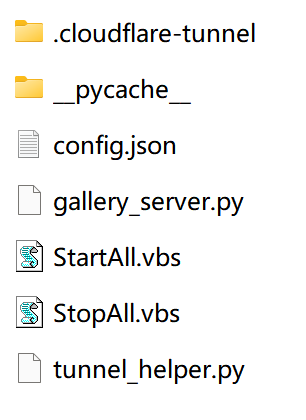
Files in the folder after running theoretically
VIII. Tunnel Config File pictures.yml
A named tunnel needs a config file specifying the ingress rules (which domain → which local address):
tunnel: picturescredentials-file: C:\Users\your-username\.cloudflared\<tunnel-id>.json
ingress: - hostname: your-subdomain.your-domain service: http://127.0.0.1:3000 - service: http_status:404
credentials-fileis the path to the credential file generated bycloudflared tunnel createin Section III. If not specified, Cloudflared will try to find it automatically, but specifying it explicitly is more reliable.
IX. Appendix: File Manager gallery_server.py
This article includes a Python file manager that can serve as a starting point for your local service or be used directly:
Features:
- Directory navigation (breadcrumb path + ”..” to go up one level)
- Display all file types (folders, images, videos, documents, etc.)
- Folders sorted first; click to enter a subdirectory
- Media files (images/videos) click to enter a fullscreen viewer, support previous/next switching, X in the top-right to close
- Non-media files click to download directly;
Content-Dispositionheader ensures the browser saves with the correct filename and extension - Keyboard
←→to switch,Escto return to the list - Mobile swipe to switch
- Adjacent files auto-preload (prefetch), switching is virtually instant
Operations features:
- PID file: Written to
.cloudflare-tunnel\server.pidon startup, automatically cleaned up on shutdown --get running: Detect whether the process is alive (on Windows, query the handle viaOpenProcess)--kill: Precisely terminate the process via PID file; StopAll.vbs prefers this method- Port-in-use protection: On bind failure, print a clear error message and suggest the
--killcommand
Performance optimizations:
- HTTP Range request (206 Partial Content): video can be scrubbed / fast-forwarded
- ETag + Last-Modified: Browser cache validation; unchanged files return 304
- Streaming: Read in 64KB chunks, never load the whole file into memory
- Cache-Control: Media files cached for 1 hour
Custom favicon: Place favicon.ico in the same directory as the script; it takes effect automatically, no code change needed.
Generality: gallery_server.py is just a sample local service. Replace it with any HTTP program listening on 127.0.0.1:port, and the VBS scripts and tunnel config don’t need to change.
X. FAQ
1. StopAll.vbs can’t close the process
Symptom: After running StopAll.vbs, the Python process and Cloudflared are still running.
Root cause: The widely-circulated tokens=-1 is invalid for /f syntax (CMD doesn’t support negative indices to take the last column); it silently falls back to tokens=1, extracting TCP instead of the PID. Also, %%a is only valid in .bat files; in cmd /c command-line mode you must use %a.
Fix: tokens=5 + %a. (The script above already uses the correct syntax)
2. VBS Chinese popup shows garbled text
Root cause: The file is encoded as UTF-8, but the VBScript engine reads it according to the system ANSI code page (GBK on Chinese Windows).
Fix: Use Notepad to save as ANSI encoding, or transcode with Python:
with open('xxx.vbs', 'r', encoding='utf-8') as f: content = f.read()with open('xxx.vbs', 'w', encoding='gbk') as f: f.write(content)3. Cloudflared reports “failed to request quick Tunnel”
Usually a network issue or an outdated Cloudflared version; upgrade to the latest version.
4. How to replace the local service program
Modify the line in StartAll.vbs that starts the local service, replacing py gallery_server.py with your startup command. The port and domain are managed centrally in config.json.
5. How to add other ports / multiple services
Add fields in config.json, read them via GetConfig() in StartAll.vbs, and duplicate the two blocks of port-killing and service-startup code. Cloudflared supports exposing multiple services simultaneously through the config file.
XI. Security Notes
--bind 127.0.0.1ensures the local service is accessible only from the machine itself; other devices on the LAN can’t connect directly- Python
http.serverhas no upload interface; PUT/DELETE and other methods are unavailable, read-only and safe --directorylocks the root directory, preventing cross-directory reading via../- Cloudflare provides free DDoS protection and SSL certificates
- For finer-grained control (IP whitelist, rate limiting), configure it in the Cloudflare panel WAF